
Home » Office for Research Protections » Drone Operations » Drone Training and Resources » Adding a Pilot
Drone Operations Menu
ORP Menu
Adding a Pilot
Pilot and drone information must be registered before filing a project flight request. The Pilot page allows the user to add a pilot or update their existing information. If you have submitted a request in the past, it is possible that your information is already available in the system (both vehicle and pilot). If you have already confirmed your pilot information in the system, confirm your aircraft information. If your pilot and aircraft information is already in the system, you can skip to file a flight request.
The steps below explain how to add a pilot in the system. See the Managing Pilot video for more assistance.
Adding/Managing a Pilot
From the homepage, Select the Pilot button
- Type in the last name of a pilot. Click on the name you wish to select if there is a match.
- If there is not a match, click on the top right + icon and type the last name in again. Select the appropriate name from the drop-down list. If the name does not appear, email uas-orp@psu.edu, and wait for confirmation.
On the register screen, you will see the categories below:
- Certificate Type: Select the appropriate certificate type as given by the FAA. Students or others not required to have an FAA Certificate may select the “Students/No Certificate” option.
- Certificate Number: The Certification number will be the number assigned by the FAA to the pilot. Those waiting for their UAS certificate number may put “pending” and update their profile at a later time. A student does not require a certificate number but must enter “None” in this field.
- Qualifications: The Qualification list provides various options for the user to select. The user should select the options that meet their level of understanding.
- Attachments: Upload a copy of the pilot Part 107 certificate and recurrent results, if applicable. To do so, click the Select files button, find the file you wish to upload, then select Upload File(s). Users may update their own information at any time.
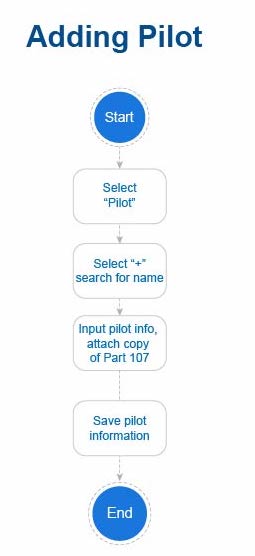
Adding/Managing a Pilot Workflow
The workflow below gives a visual outline the steps to add a pilot.
Office for Research Protections
Address
200 Innovation Blvd.
Suite 110
University Park, PA 16802
The Office for Research Protections (ORP) ensures that research at the University is conducted in accordance with federal, state, and local regulations and guidelines that protect human participants, animals, students, and personnel involved with research.